
Greetings, fellow developers! In this journey, we’ll dive into the Angular universe, weaving together the threads of Material UI, AWS Cognito, Amplify.js, and AWS Map and Place Index to create a captivating geolocation web application. Join us as we embark on a quest filled with maps and markers, suitable for both seasoned professionals and budding beginners.
Let’s get started!
1. Setting the Stage: Angular Essentials
In this section, we will dive into the foundational aspects of Angular 16, set up our project, and install essential dependencies. Let us begin by laying the groundwork for our geolocation web application.
Overview of Angular: Angular is a comprehensive framework for building client-side web applications. It provides developers with a structured approach to application development, using TypeScript to enable robust and scalable code.
Setting Up Our Angular Project: To create a new Angular project, we will use the Angular CLI (Command Line Interface), which streamlines project creation and management. Open your terminal and run the following command:
ng new geolocation-appThis command generates a new Angular project named `geolocation-app` in the current directory.
cd geolocation-appNext, we will install Angular Material, a UI component library that integrates seamlessly with Angular.
ng add @angular/materialFollow the prompts to select a custom theme and configure global typography styles.
Once this is complete, you will have the base Angular + Material UI setup ready to begin development.
We will also need libraries for map rendering and authentication with AWS.
For maps and markers, we will use MapLibre GL.
For interacting with AWS APIs, we will use AWS Amplify JS.
The code provided is not limited to AWS Amplify JS. A separate Credentials Provider file has been included, which can be used even if Amplify is not used for authentication in your existing project.
All you need are the user’s authentication credentials. You can modify the provided Credentials Provider to use any authentication credentials that suit your requirements.
We will need to install the following libraries using npm:
npm i aws-amplify  @aws-amplify/geo  maplibre-gl  maplibre-gl-js-amplify
npm i @types/mapbox__mapbox-gl-draw --save-dev
For the project file structure, please refer to the provided GitHub repository.
2. Diagrams:
2.1. Architecture Diagram:
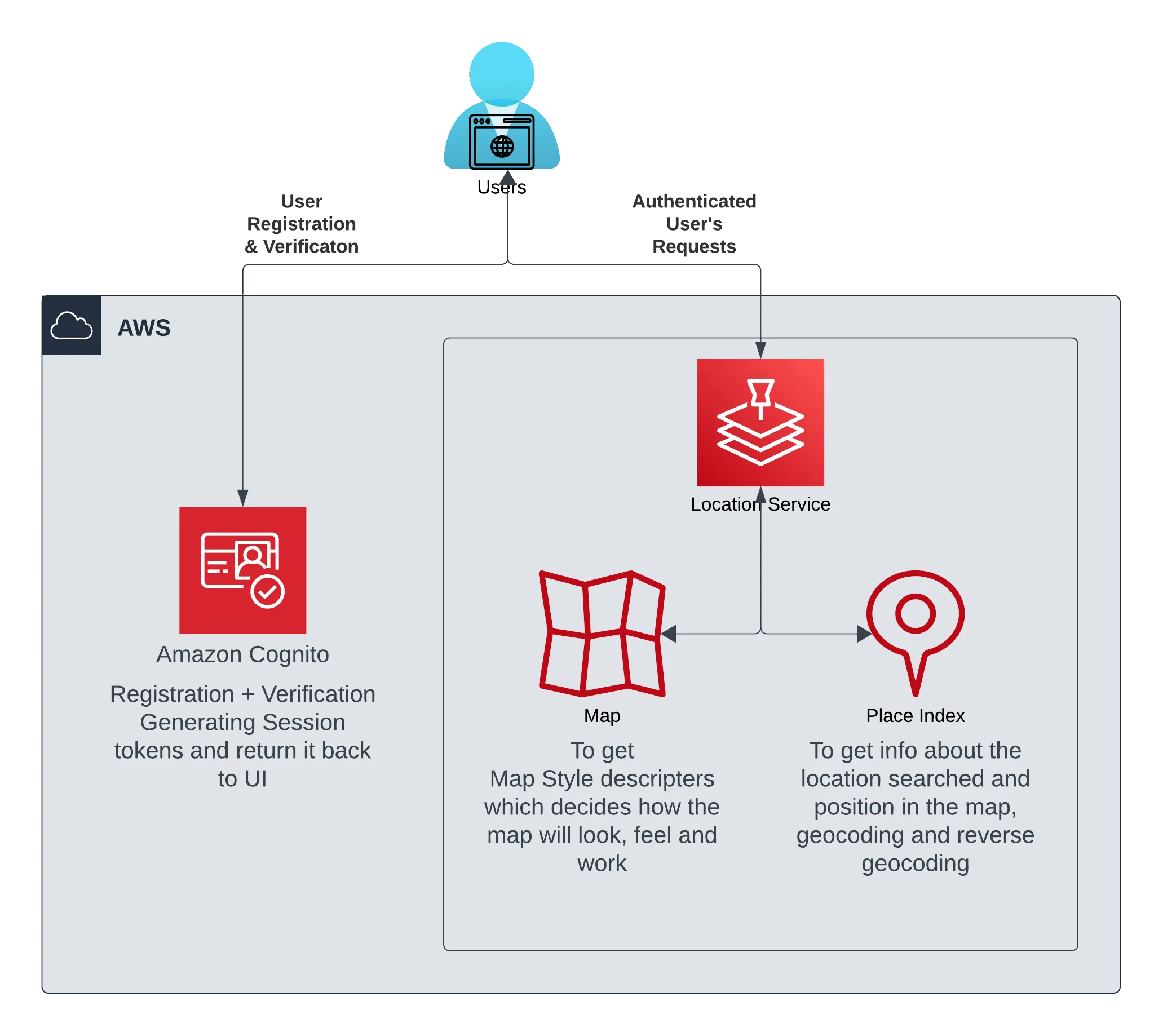
2.2. Flow Diagram
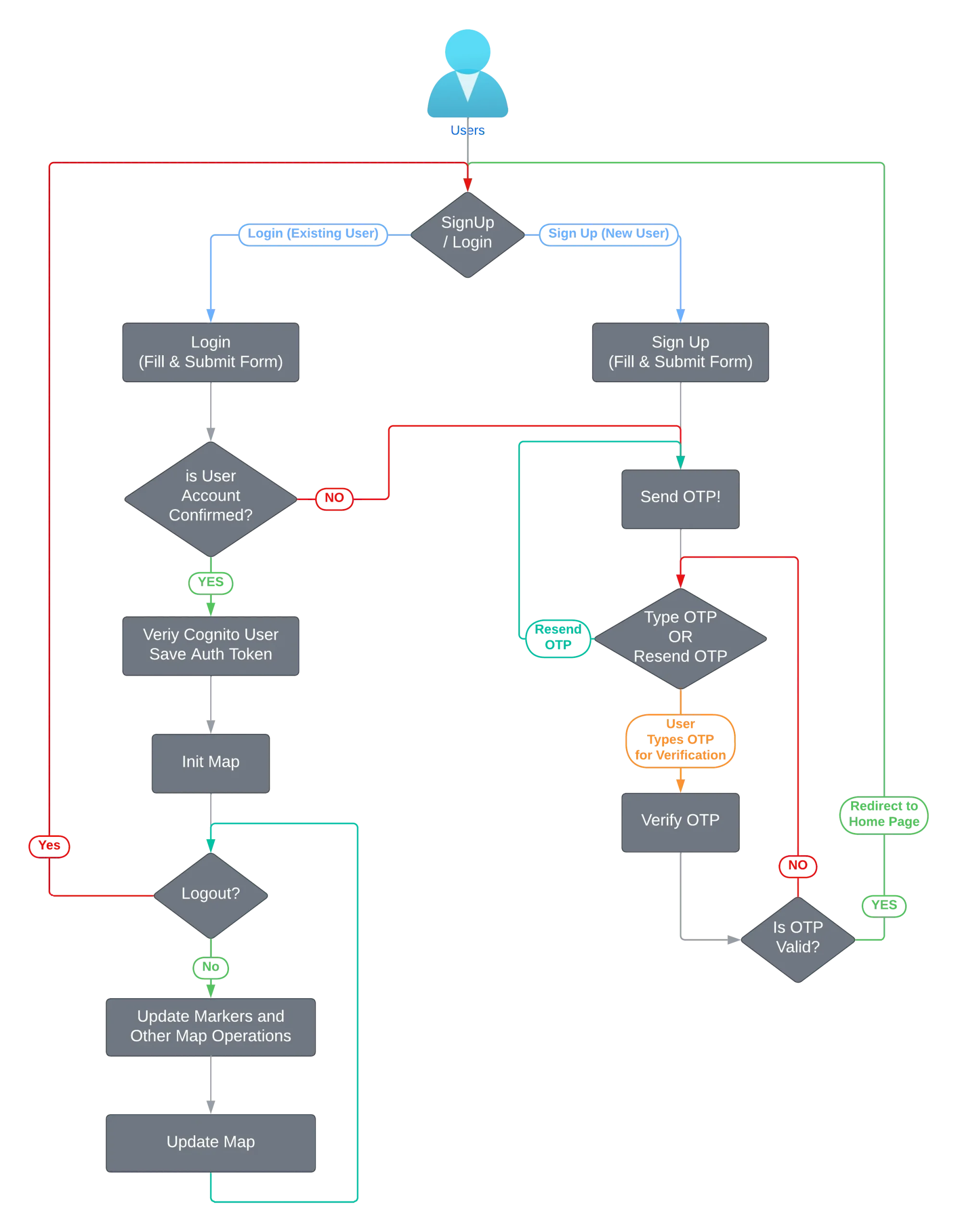
3. AWS Setup:
The setup requires the following AWS services and configurations:
- Cognito User Pool
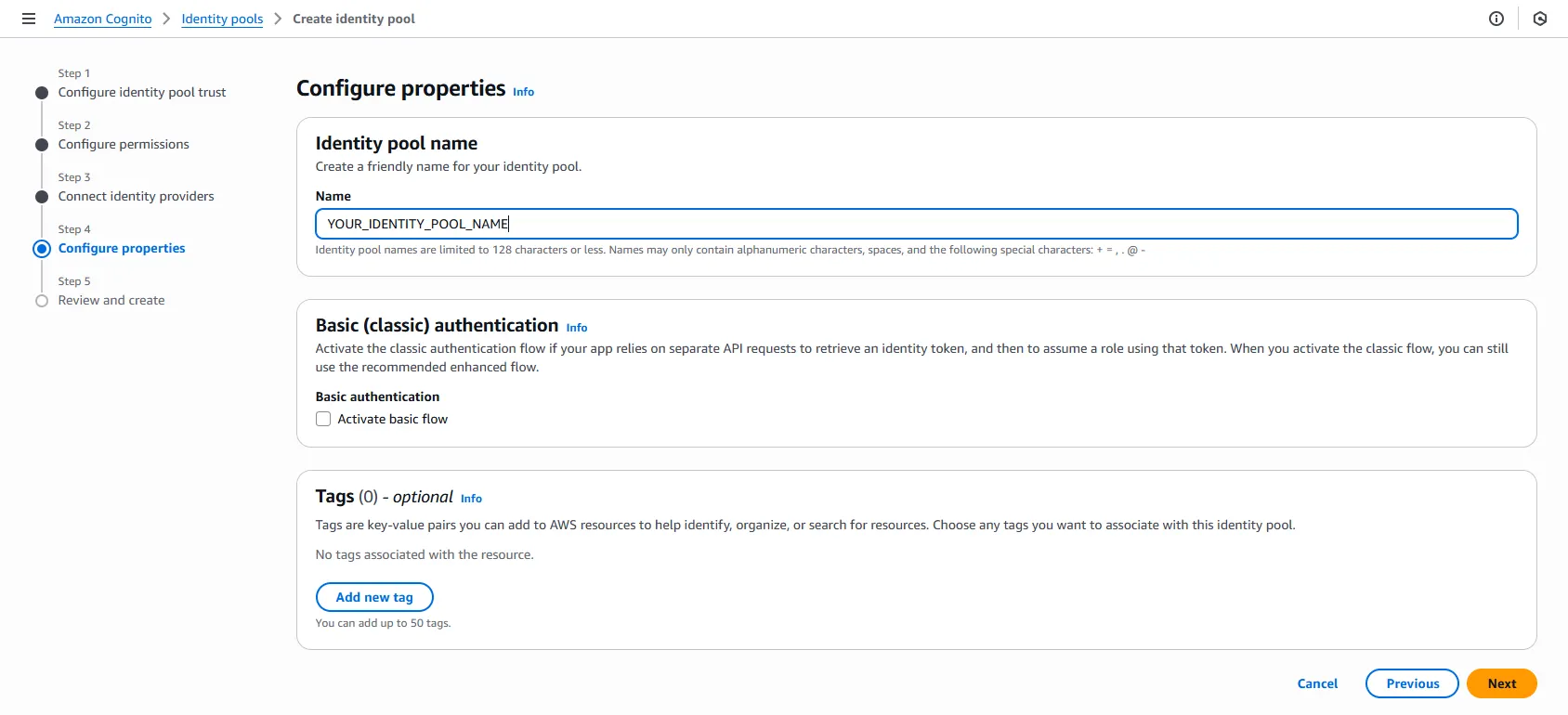
- Cognito Identity Pool
- Permissions to create and update roles and access policies
- AWS Location Service (Map and Place Index)
You can easily find up-to-date guides online to set these up.
The process has become quite straightforward, as shown in the screenshot below:
3.1. Cognito User Pool and App Client:
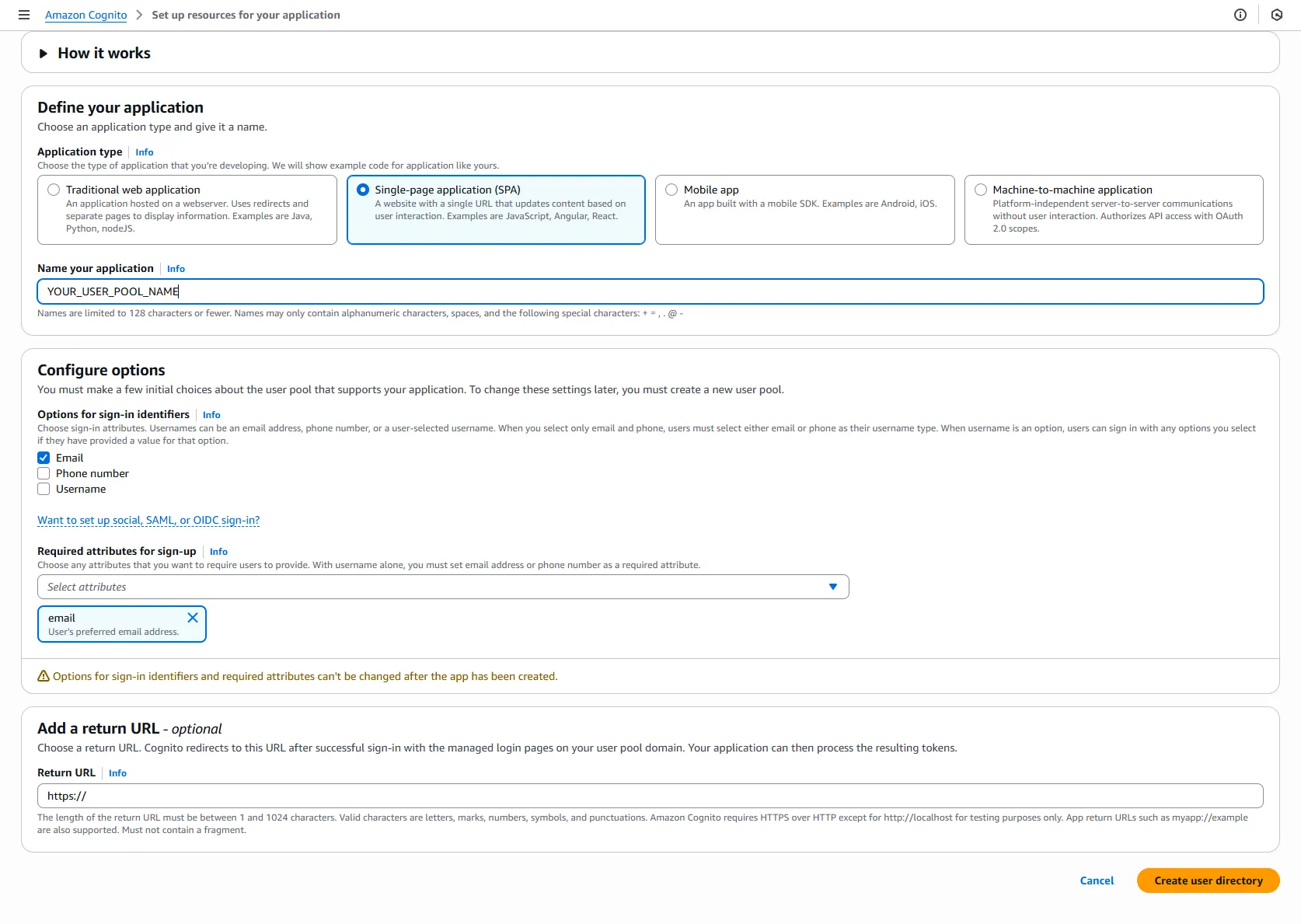
Set up a new App Client if it has not already been created.
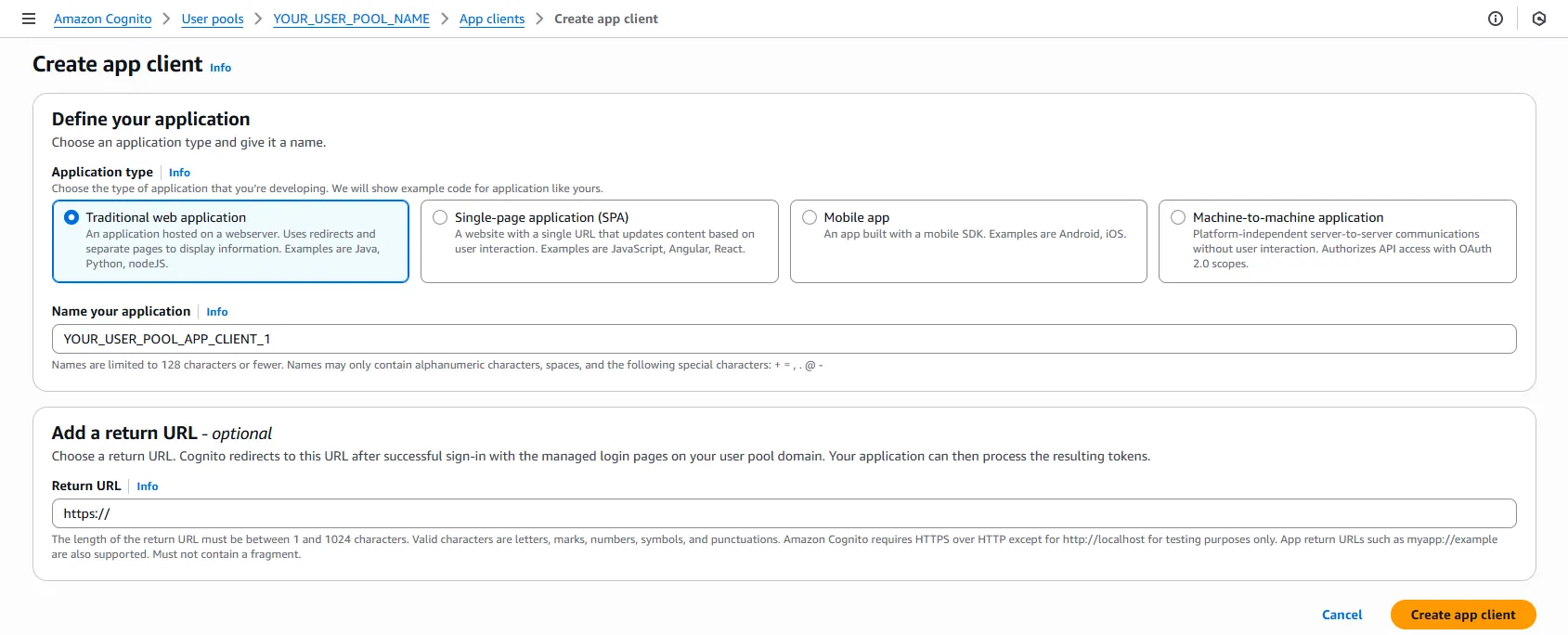
For better security, it is recommended to use `ALLOW_USER_SRP_AUTH`.
Please consider this option if you are developing a new application and if it supports this authentication method for your use case.
3.2. Cognito Identity Pool:
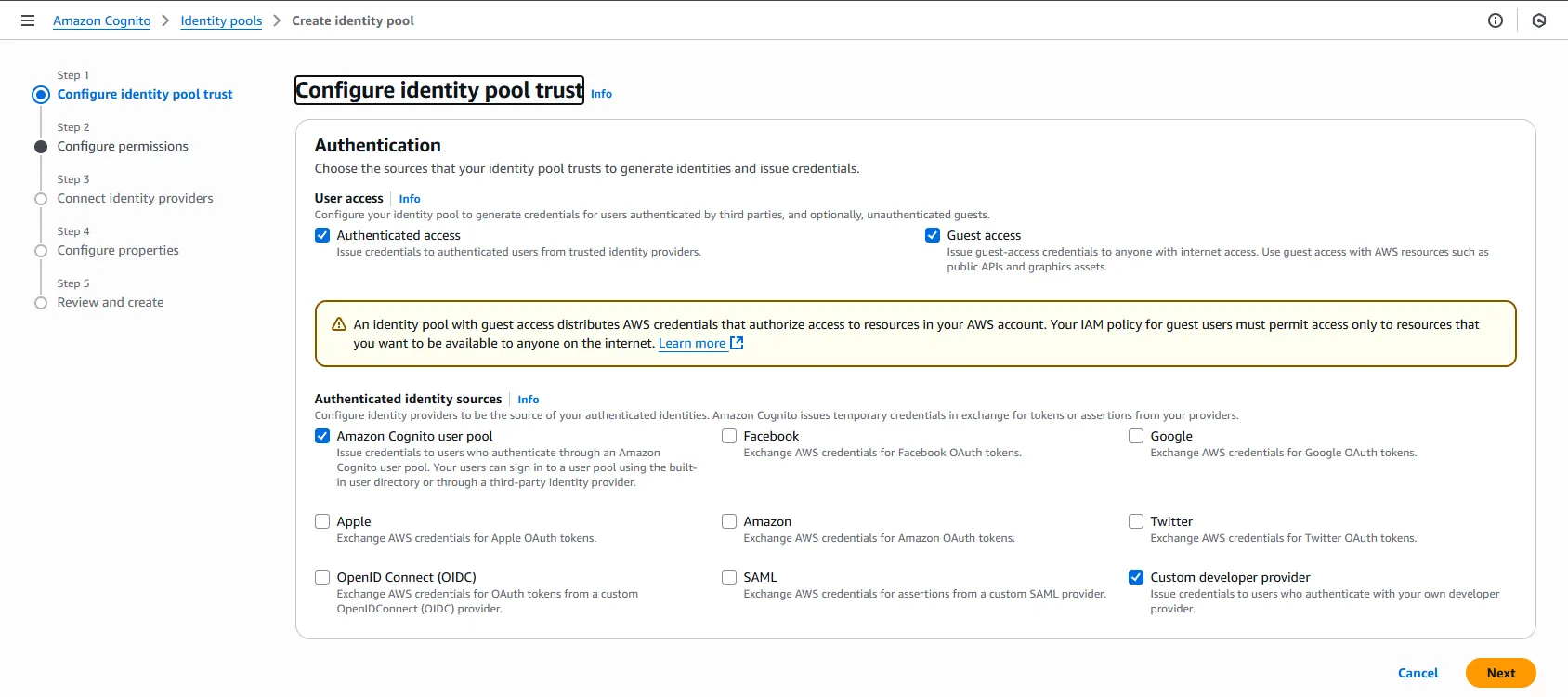
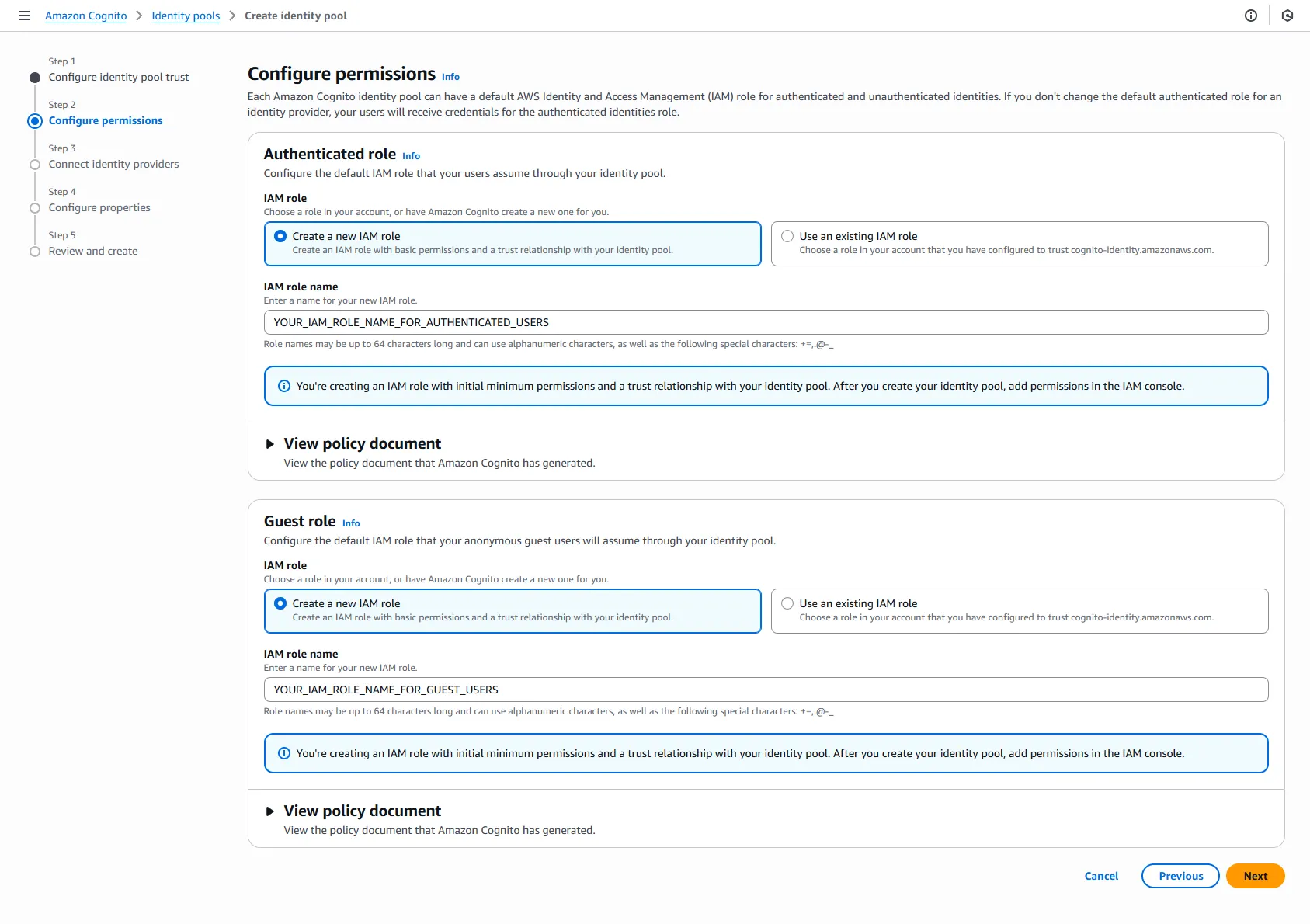
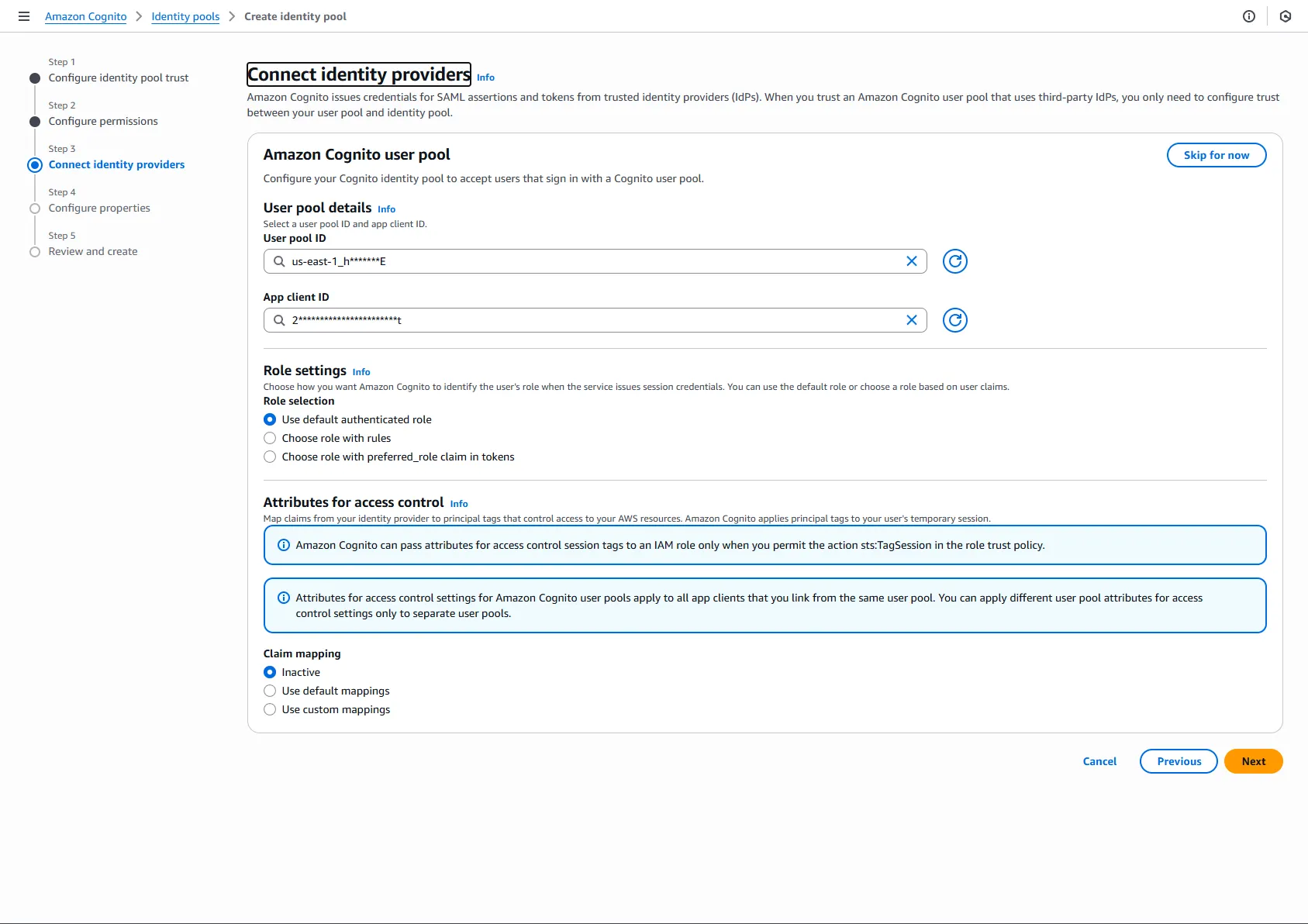
In this step, you will need to select the User Pool and App Client that were created in section 3.1: Cognito User Pool and App Client.
3.3. Map (Location Service):
Since the update on 2 Apr 2025 (linked here),AWS no longer requires the creation of a Map resource. However, to help users understand the original functionality, this option is still available as a legacy feature.
Below are the details for creating a legacy Map resource.
API keys can also be configured for accessing Map/Location Service resources.
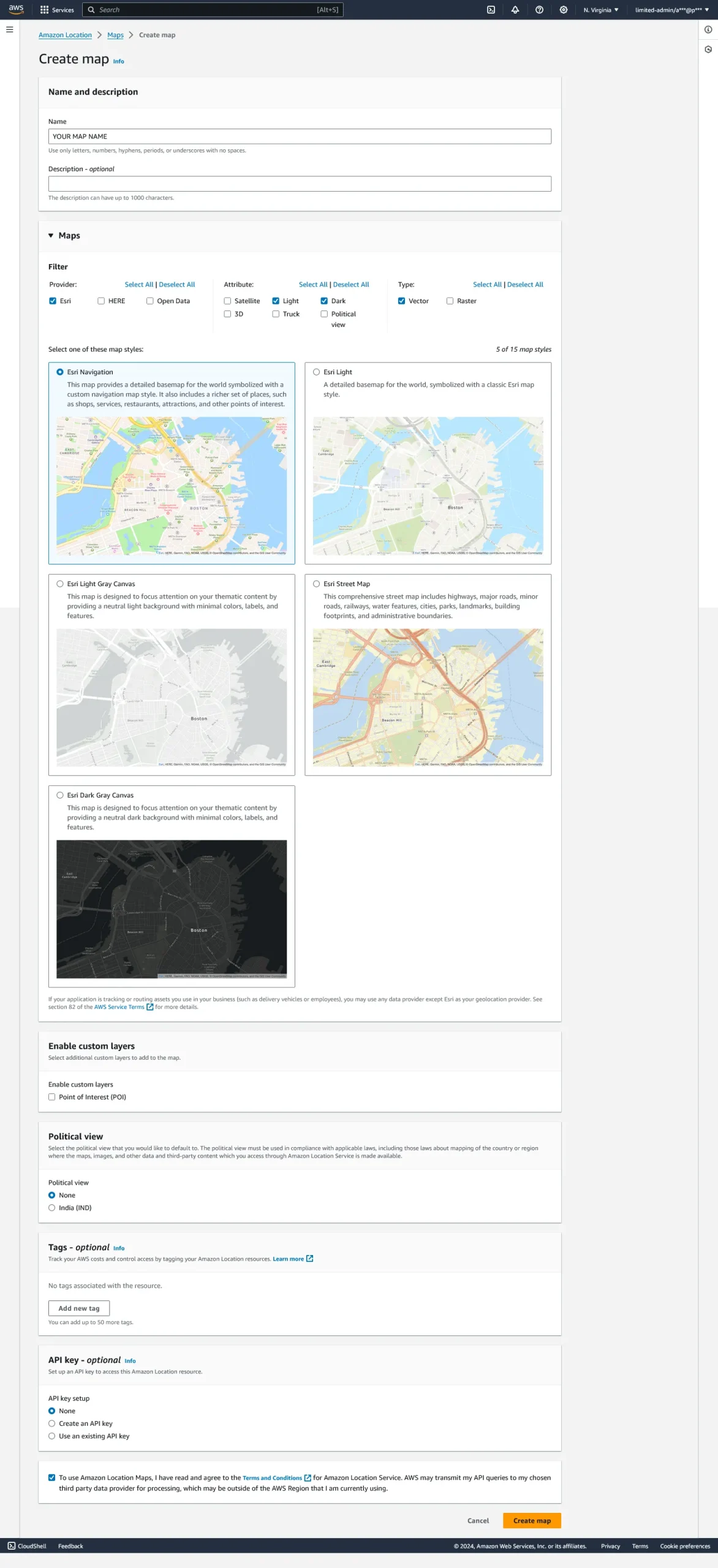
When selecting a map provider, AWS offers three primary options:
Each provider has its own advantages, disadvantages, coverage areas, and overall map look and feel. The geographical coverage also varies significantly between providers.
This AWS document on map data providers offers detailed insights into how each option looks and the regions they cover. ESRI appears to be a widely used provider. Open Data uses open-source datasets, whereas the other two options do not.
Additionally, there is another provider called Grab Maps, which offers map data specifically for Southeast Asia. For this reason, it is only available for resources created in the ap-southeast-1 region.
As a result, it is not suitable for applications that need to load maps for other geographical regions.
Below is a quick summary comparing Google Maps, AWS Location Service, and Azure Maps.
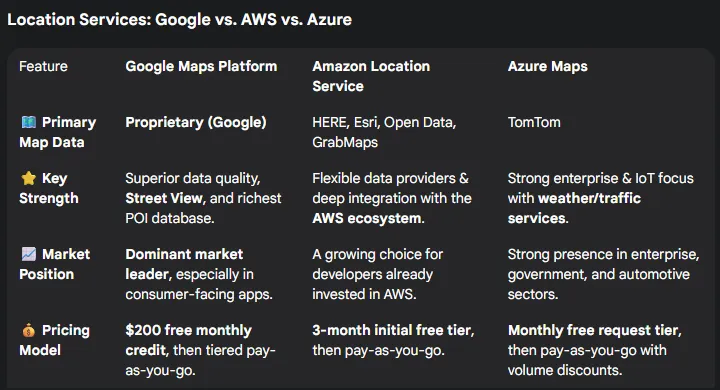
There are many factors to consider when selecting a service—not just which is the best or easiest to use.
In this blog, AWS has been chosen due to its seamless integration with the AWS ecosystem, which aligns with the environment used during development.
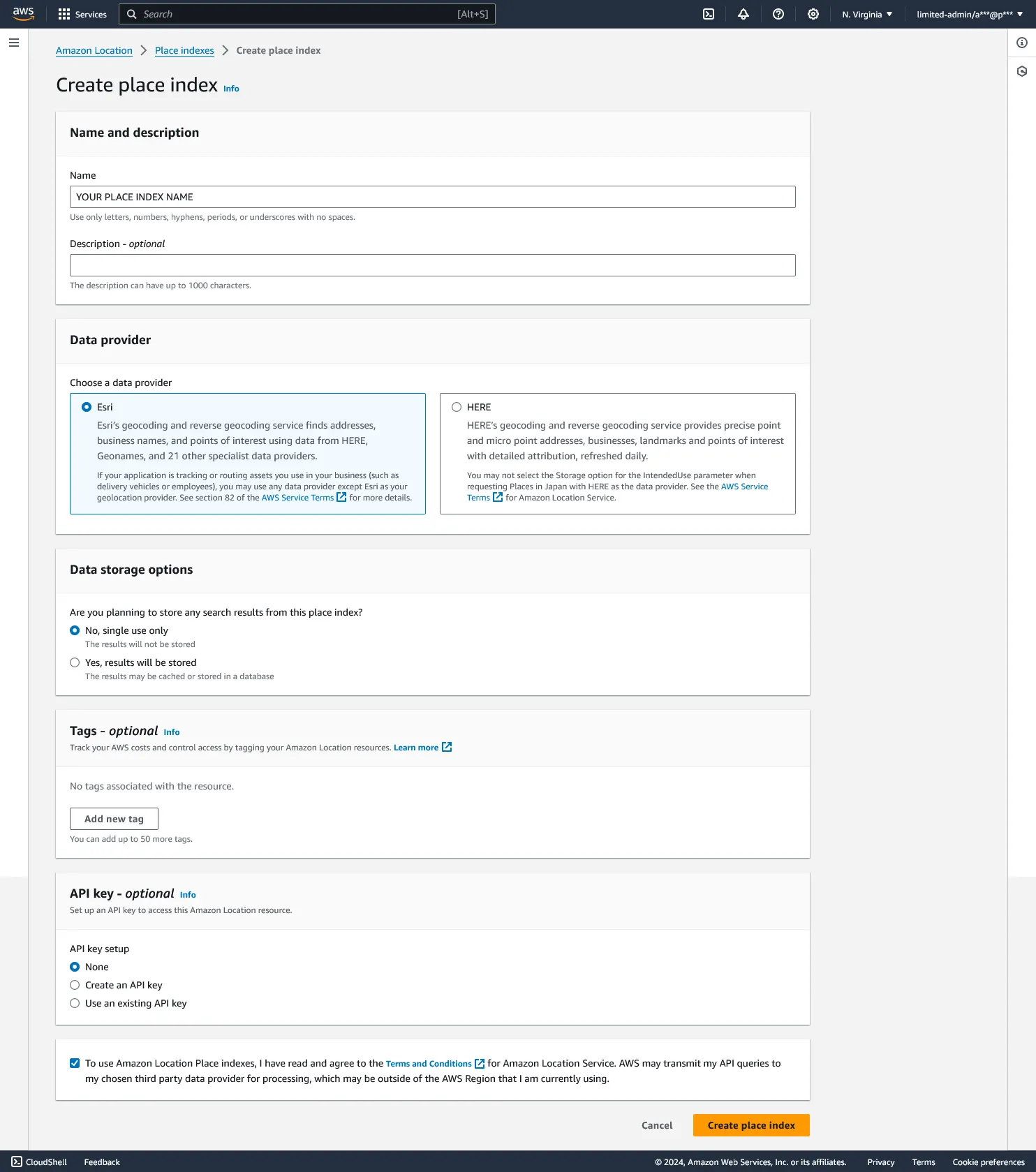
3.4. Map — Place Index (Location Service):
3.5. AWS IAM Policy for Map Read-Only Access for Users
{
    "Version": "2012-10-17",
    "Statement": [
        {
            "Sid": "MapReadOnlyAccess",
            "Effect": "Allow",
            "Action": [
                "geo:GetMapGlyphs",
                "geo:GetMapSprites",
                "geo:GetMapStyleDescriptor",
                "geo:GetMapTile"
            ],
            "Resource": "arn:aws:geo:{AWS_REGION}:{AWS_ACCOUNT_ID}:map/{MAP_NAME}",
            "Condition": {
                "ForAnyValue:StringLike": {
                    "aws:Referer": "http://localhost:4200/*"
                }
            }
        },
        {
            "Sid": "PlaceIndexReadOnlyAccess",
            "Effect": "Allow",
            "Action": [
                "geo:SearchPlaceIndexForText",
                "geo:SearchPlaceIndexForSuggestions",
                "geo:SearchPlaceIndexForPosition",
                "geo:GetPlace"
            ],
            "Resource": "arn:aws:geo:{AWS_REGION}:{AWS_ACCOUNT_ID}:place-index/{PLACE_INDEX_NAME}",
            "Condition": {
                "ForAnyValue:StringLike": {
                    "aws:Referer": "http://localhost:4200/*"
                }
            }
        }
    ]
}
This is an AWS IAM policy that provides limited read-only access to Amazon Location Service for an application running at: http://localhost:4200.
![[Example] IAM Policy](https://www.presidio.com/wp-content/uploads/2026/06/Image-14-Example-IAM-Policy.webp)
3.6. Applying IAM Policy to AWS Cognito Identity Pool
![[Example] AWS Cognito Identity Pool User Access](https://www.presidio.com/wp-content/uploads/2026/06/Image-15-Example-AWS-Cognito-Identity-Pool-User-Access.webp)
![[Example] AWS Cognito Identity Pool — Role — New Attached Policy](https://www.presidio.com/wp-content/uploads/2026/06/Image-16-Example-AWS-Cognito-Identity-Pool-—-Role-—-New-Attached-Policy.webp)
3.7. [ALTERNATE AUTHORIZATION PATH] API Keys for Accessing Location Service Resources
It is also possible to access Location Service resources using API keys.
If you prefer not to manage access through policies and user identities, this can be a simpler alternative.
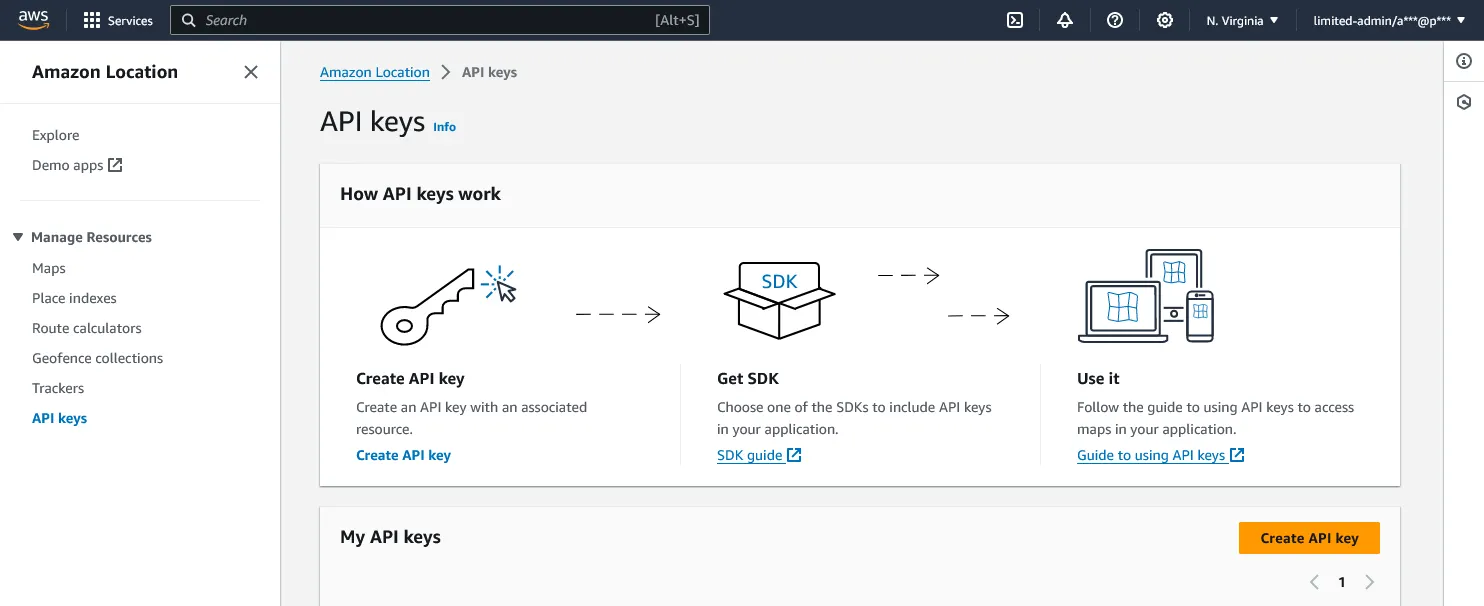
You can create API keys with specific permissions for maps, place indexes, and routes, and use those keys in your application to grant controlled access to these resources.
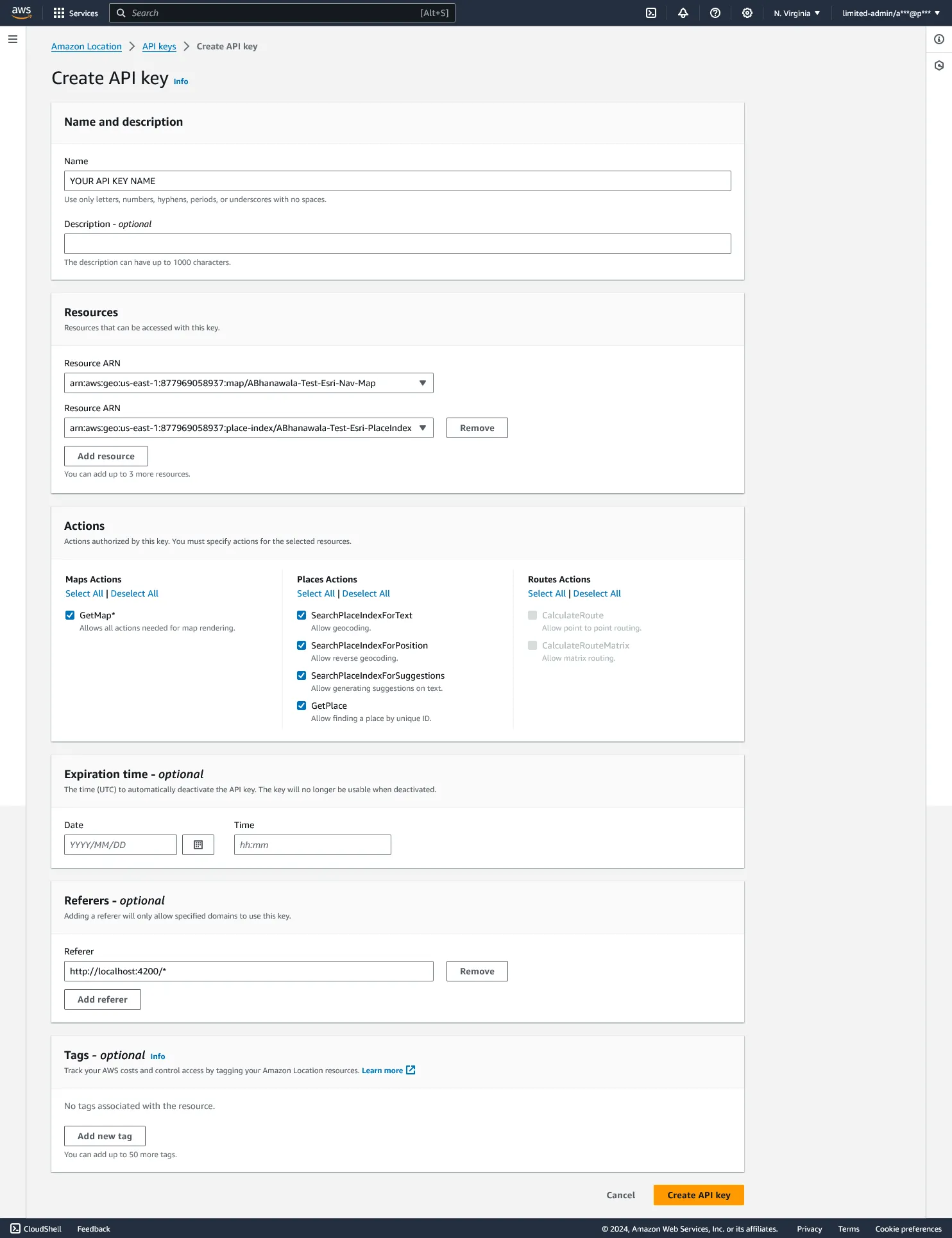
As shown above, you can configure your API Key.
The official AWS blog on implementing API keys for accessing Location Service resources can be found here: (https://aws.amazon.com/blogs/mobile/build-a-geospatial-application-with-amazon-location-service-api-keys).
If this is something you want to implement, please follow the linked AWS guide on how to use Location Service API Keys in your application.
For the remaining markers and other configurations, you can follow the details described below.

4. Angular Project:
I will focus on the map integration files, presenting their code along with detailed explanations.
For other required files, please refer to the GitHub repository mentioned below.
4.01. Environment File Setup
src/environments/environment.ts
import { MAP_STYLES } from "maplibre-gl-js-amplify/lib/esm/constants";
import { Environment } from "./types";

// Define environment configuration
const _environment: Environment = {
    environmentFile: 'environment.ts',
    production: false,
    aws: {
        region: 'REGION GOES HERE',
        amplifyConfig: {
            Auth: {
                Cognito: {
                    userPoolId: 'USER_POOL_ID GOES HERE',
                    userPoolClientId: 'CLIENT ID GOES HERE',
                    identityPoolId: 'IDENTITY_POOL_ID GOES HERE',
                    signUpVerificationMethod: 'code',
                    loginWith: { email: true, username: true },
                    allowGuestAccess: true,
                }
            }
        },
        signInOptions: {
            authFlowType: 'USER_PASSWORD_AUTH',
        },
        mapResource: {
            mapName: 'YOUR MAP RESOURCE NAME GOES HERE',
            mapStyle: MAP_STYLES.ESRI_NAVIGATION, // YOUR MAP STYLE GOES HERE
            placeIndexName: 'YOUR PLACE INDEX NAME GOES HERE'
        },
    },
};
// Export the environment configuration
export const environment = Object.freeze(_environment);
Please note:
In the above configuration file, I have specified the following line: loginWith: { email: true, username: true }
In this configuration, `username: true` should only be enabled if it has been allowed in Step 1 of your Cognito configuration (3.1 Cognito User Pool and App Client) and you plan to use a username for authentication.
Otherwise, we can omit this option.
4.02. [Optional Bonus] AWS Credentials Provider
src/app/utils/AwsSdkCredentialsProvider.ts
We do not currently use this file in the application; however, we include it for reference, especially for those interested in building a credentials provider using an existing Access Key ID, Secret Access Key, and Session Token.
These elements form the core of an authenticated user’s access and identity. This provider can be used to supply authentication credentials for AWS Maps API calls. To use it, you simply need to populate the credentials object with the Access Key ID, Secret Access Key, and Session Token.
This provider can also be extended to support guest (unauthenticated) access through an AWS Cognito Identity Pool.
import { CredentialsAndIdentityId, CredentialsAndIdentityIdProvider } from '@aws-amplify/core';

export class AwsSdkCredentialsProvider implements CredentialsAndIdentityIdProvider {
    constructor(private cognitoService: CognitoService) {}
    async getCredentialsAndIdentityId(): Promise {
        return new Promise((resolve, reject) => {
   const userCredentials = ;
            if (userCredentials) {
                resolve({
                    credentials: {
                        accessKeyId: userCredentials.accessKeyId,
                        secretAccessKey: userCredentials.secretAccessKey,
                        sessionToken: userCredentials.sessionToken,
                    },
                });
            } else {
                reject('Credentials missing!');
            }
        });
    }
    // Implement this to clear any cached credentials and identityId.
    clearCredentialsAndIdentityId(): void {
        // Method to clear cached credentials and identityId, if needed.
    }
}
This TypeScript code represents the AwsSdkCredentialsProvider class, which implements the CredentialsAndIdentityIdProvider interface from @aws-amplify/core. Here’s a breakdown of the key components:
- constructor: Initializes the AwsSdkCredentialsProvider with a CognitoService instance injected as a dependency.
- getCredentialsAndIdentityId: Asynchronously retrieves credentials and the identity ID from the Cognito service’s authentication session. If successful, it resolves with the credentials and identity ID; otherwise, it rejects with an error.
- clearCredentialsAndIdentityId: A placeholder method to clear any cached credentials and identity ID, if needed.
This class is responsible for providing AWS SDK-compatible credentials and an identity ID for authenticated users, facilitating seamless integration with AWS services within the application.
4.03. Cognito Service
src/app/services/cognito.service.ts
import { Injectable } from '@angular/core';
import { Amplify } from 'aws-amplify';
import { AuthSession } from '@aws-amplify/core/dist/esm/singleton/Auth/types';
import { signIn, signUp, signOut, confirmSignUp, getCurrentUser, AuthUser, ConfirmSignUpOutput, SignUpOutput, resendSignUpCode, ResendSignUpCodeOutput, SignInOutput, fetchAuthSession } from 'aws-amplify/auth';
import { environment } from 'src/environments/environment';

// Interface for user data
export interface IUser {
    email: string;
    password?: string;
    showPassword?: boolean;
    code?: string;
    name?: string;
}

// Local storage key for user logged-in status
export const ls_key_is_user_logged_in = 'IS_USER_LOGGED_IN';

@Injectable({
    providedIn: 'root',
})
export class CognitoService {
    constructor() {
        // Configure Amplify with environment settings
        Amplify.configure(environment.aws.amplifyConfig);
    }
    // Sign up user
    public signUp(user: IUser): Promise {
        return signUp({
            username: user.email,
            password: user.password || '',
        });
    }
    // Confirm sign up with verification code
    public confirmSignUp(user: IUser): Promise {
        return confirmSignUp({ username: user.email, confirmationCode: user.code || '' });
    }
    // Resend sign up verification code
    public resendSignUpCode(user: IUser): Promise {
        return resendSignUpCode({ username: user.email });
    }
    // Sign in user
    public signIn(user: IUser): Promise {
        const signInRequest = signIn({
            username: user.email,
            password: user.password,
            options: { authFlowType: 'USER_PASSWORD_AUTH' }
        });
        signInRequest.then((res) => {
            if (res.isSignedIn) {
                localStorage.setItem(ls_key_is_user_logged_in, 'true');
            } else {
                localStorage.removeItem(ls_key_is_user_logged_in);
            }
        }).catch((err) => {
            console.log('CognitoService.signIn(): err', err);
            localStorage.removeItem(ls_key_is_user_logged_in);
        });
        return signInRequest;
    }
    // Sign out user
    public signOut(): Promise {
        return signOut().then(() => {
            localStorage.removeItem(ls_key_is_user_logged_in);
        });
    }
    // Get current authenticated user
    public getUser(): Promise {
        const user = getCurrentUser();
        user.then((user) => {
            if (user) {
                localStorage.setItem(ls_key_is_user_logged_in, 'true');
            } else {
                localStorage.removeItem(ls_key_is_user_logged_in);
            }
        }).catch((err) => {
            console.log('CognitoService.getUser(): err', err);
            localStorage.removeItem(ls_key_is_user_logged_in);
        });
        return user;
    }
    // Get authentication session
    public getAuthSession(): Promise {
        const session = fetchAuthSession();
        session.then(() => {
            localStorage.setItem(ls_key_is_user_logged_in, 'true');
        }).catch((err) => {
            console.log('CognitoService.getUserSession(): err', err);
            localStorage.removeItem(ls_key_is_user_logged_in);
        });
        return session;
    }
    // Check if user is authenticated
    public isAuthenticated(): Promise {
        return this.getUser()
            .then((user) => {
                if (user) {
                    return true;
                } else {
                    return false;
                }
            }).catch(() => {
                return false;
            });
    }
    // Check if user is logged in (based on local storage)
    isUserLoggedIn(): boolean {
        return localStorage.getItem(ls_key_is_user_logged_in) === 'true';
    }
}
This TypeScript code represents the CognitoService class in your Angular application and is responsible for handling authentication-related operations using AWS Cognito. Here’s a breakdown of its key functionalities:
- signUp: Registers a new user with AWS Cognito.
- confirmSignUp: Verifies the confirmation code sent during the sign-up process.
- resendSignUpCode: Resends the sign-up verification code to the user’s email.
- signIn: Authenticates a user using their email and password.
- signOut: Signs out the currently authenticated user.
- getUser: Retrieves the current authenticated user.
- getAuthSession: Retrieves the current authentication session.
- isAuthenticated: Checks whether a user is currently authenticated.
- isUserLoggedIn: Checks whether a user is logged in based on a local storage flag.
Note:
Here, I have used `localStorage` to store temporary credentials in the application. For a better approach, you can use global state management in Angular.
For managing global state in Angular, one solution is RxAngular Global State:
https://www.rx-angular.io/docs/state/recipes/use-rxstate-as-global-state
This provides support for handling events throughout the entire Angular application, allowing you to maintain a global state across the application or within specific sections, depending on your needs.
For the authentication section, a recommended solution is the Amplify Auth Event Hub:https://docs.amplify.aws/angular/build-a-backend/auth/auth-events/
Using this provides a better way to handle different events that occur during authentication.
4.04. Map Component — HTML
src/app/components/map/map.component.html
<!-- MAP COMPONENT -->
<h1>MAP COMPONENT</h1>
<div class="map-wrapper">
    <!-- Div element to contain the map -->
    <div #map class="my-map"></div>
</div>
<div class="actions">
    <!-- Button to handle adding predefined locations -->
    <button (click)="handleAddPredefinedLocationClick()" mat-stroked-button>
        Add Predefined Location
    </button>
    <!-- Button to handle removing all map markers -->
    <button (click)="removeAllMapMarkers()" mat-stroked-button>
        Remove all Markers
    </button>
</div>
4.05. Map Component — Logic (Typescript)
src/app/components/map/map.component.ts
import { AfterViewInit, Component, ElementRef, EventEmitter, OnChanges, OnInit, SimpleChanges, ViewChild, ViewContainerRef } from '@angular/core';
import { ActivatedRoute } from '@angular/router';
import { Amplify, ResourcesConfig } from '@aws-amplify/core';
import { Geo } from '@aws-amplify/geo';
import { SearchByTextOptions, Place } from '@aws-amplify/geo/dist/esm/types/Geo';
import { LegacyConfig } from '@aws-amplify/core/internals/utils';
import { FitBoundsOptions, LngLatBounds, Map, MapOptions, Marker, NavigationControl } from 'maplibre-gl';
import { createAmplifyGeocoder, createMap, drawPoints } from 'maplibre-gl-js-amplify';
import { NamedLocation } from 'maplibre-gl-js-amplify/lib/esm/types';
import { DrawPointsOutput } from 'maplibre-gl-js-amplify/lib/esm/drawPoints';
import { MAP_STYLES } from 'maplibre-gl-js-amplify/lib/esm/constants';
import { environment } from 'src/environments/environment';
import { MapMarkerCustom1Component } from './markers/map-marker-custom-1/map-marker-custom-1.component';
import { MapMarkerCustom2Component } from './markers/map-marker-custom-2/map-marker-custom-2.component';
import { MapMarkerCustom3Component } from './markers/map-marker-custom-3/map-marker-custom-3.component';
import { MapMarkerAmplifyMapLibreGLComponent } from './markers/map-marker-amplify-maplibre-gl/map-marker-amplify-maplibre-gl.component';
import { CUSTOM_MAP_MARKER, MAP_MARKER_TYPE, MapConfig } from './types';

/**
 * Custom map marker classes defined in their respective components
 */
export const CUSTOM_MAP_MARKER_CLASSES = Object.freeze({
 [CUSTOM_MAP_MARKER.CUSTOM_HTML_1]: 'map-marker-custom-1',
 [CUSTOM_MAP_MARKER.CUSTOM_HTML_2]: 'map-marker-custom-2',
 [CUSTOM_MAP_MARKER.CUSTOM_HTML_3]: 'map-marker-custom-3',
 [CUSTOM_MAP_MARKER.MAPLIBRE_GL_AMPLIFY]: 'map-marker-maplibre-gl',
});
const AWS_LOCATION_SERVICE_ADDRESS_SEARCH_OPTIONS: SearchByTextOptions = {
 providerName: 'AmazonLocationService',
 countries: ['USA'],
 language: 'EN',
};
const MAP_CONFIG: MapConfig = {
 markerColor: '#E74B3C',
 mapLibreAmplifyMarkersSourceName: 'Map_Libre_Amplify_Markers',
 markerType: MAP_MARKER_TYPE.CUSTOM_HTML,
 customMarkerVariant: CUSTOM_MAP_MARKER.CUSTOM_HTML_1,
 getMapBoundingOptions: (
  _markerType = MAP_CONFIG.markerType,
  _customMarkerVariant = MAP_CONFIG.customMarkerVariant
 ) => {
  const options: FitBoundsOptions = {
   maxZoom: 14,
   padding: {
    bottom: 50,
    top: 50,
    left: 50,
    right: 70,
   },
   duration: 1500,
  };
  return options;
 },
};

@Component({
 selector: 'app-map',
 templateUrl: './map.component.html',
 styleUrls: ['./map.component.scss'],
})
export class MapComponent implements OnInit, AfterViewInit, OnChanges {
 @ViewChild('map') private mapContainer!: ElementRef;
 inputAddresses: string[];
 inputAddressesExists = false;
 map: Map;
 mapStyle: string;
 mapInitialState: Partial = {
  container: undefined,
  center: {
   lng: -73.6546634,
   lat: 45.4859129,
  },
  zoom: 14,
  interactive: true,
 };
 addOnClickFixedLocations: {
  currentIndex: number
  locations: NamedLocation[]
 } = {
   currentIndex: 0,
   locations: [
    {
     title: 'Location 1',
     address: 'Location 1, Location 1, Location 1, Location 1, Location 1, Location 1, US',
     coordinates: [-74.020253, 45.779222],
    },
    {
     title: 'Location 2',
     address: 'Location 2, Location 2, Location 2, Location 2, Location 2, Location 2, US',
     coordinates: [-69.656862, 47.702024],
    },
    {
     title: 'Location 3',
     address: 'Location 3, Location 3, Location 3, Location 3, Location 3, Location 3, US',
     coordinates: [-61.9720506, 46.452625],
    },
   ]
  };
 mapMarkers: Marker[] = [];
 namedLocations: NamedLocation[] = [];
 mapDrawPoints: DrawPointsOutput;
 mapBounds = new LngLatBounds();
 locationSearches: { [x: string]: Promise<Place[]> | Place | undefined } = {};
 drawPointInitEventEmitter: EventEmitter;
 bufferDrawPoints: NamedLocation[] = [];
 constructor(
  private route: ActivatedRoute,
  private readonly viewContainerRef: ViewContainerRef
 ) {
  this.mapStyle = `https://maps.geo.${environment.aws.region}.amazonaws.com/maps/v0/maps/${environment.aws.mapResource.mapName}/style-descriptor`;
 }

 ngOnInit(): void {
  this.route.data.forEach((data) => {
   if (data['inputAddresses']) {
    this.inputAddresses = data['inputAddresses'];
    this.inputAddressesExists = true;
   }
  })
  this.configureAmplify();
 }

 ngAfterViewInit(): void {
  this.initMap();
 }

 /**
  * Track changes
  * @param changes
  */
 ngOnChanges(changes: SimpleChanges): void {
  /**
   * Handle input locations changes
   */
  if (this.inputAddresses?.length) {
   this.inputAddresses.forEach((address, i) => {
    if (address) {
     if (this.locationSearches[address]) {
      /**
       * Location already exist in previously searched locations,
       *  and it should already be present in the Map as a Marker/DrawPoint,
       *  so there is no need to do anything.
       */
     } else {
      this.locationSearches[address] = this.searchByAddress(address);
      (this.locationSearches[address] as Promise<Place[]>)
       .then(res => {
        if (res?.length) {
         const firstSearchResult = res[0];
         this.locationSearches[address] = firstSearchResult;
         const firstNamedLocation = placeToNamedLocation(firstSearchResult, address, address);
         this.addLocationMarkerInMap(firstNamedLocation, i + 1);
        } else {
         console.warn('Location not found:', address);
        }
       })
       .catch(error => {
        console.error(error);
        this.locationSearches[address] = undefined;
       });
     }
    } else {
     console.warn('Location address not searchable:', address);
    }
   });
  }

  /**
   * Turn Place result to NamedLocation for showing it in map
   * @param place
   * @param titleOverride
   * @param addressOverride
   * @returns
   */
  function placeToNamedLocation(place: Place, titleOverride?: string, addressOverride?: string) {
   return {
    title: titleOverride,
    coordinates: place.geometry?.point,
    address: addressOverride,
   } as NamedLocation;
  }
 }

 /**
  * Amplify configuration with credentials and Location Service config
  */
 configureAmplify(): void {
  console.info('env:', environment);
  Amplify.configure(
   {
    ...Amplify.getConfig(),
    Geo: {
     LocationService: {
      maps: {
       items: {
        [environment.aws.mapResource.mapName]: {
         // REQUIRED - Amazon Location Service Map resource name
         style: MAP_STYLES.ESRI_NAVIGATION, // REQUIRED - String representing the style of map resource
         // Other Styles: https://docs.aws.amazon.com/location/latest/APIReference/API_MapConfiguration.html
        },
       },
       default: environment.aws.mapResource.mapName, // REQUIRED - Amazon Location Service Map resource name to set as default
      },
      searchIndices: {
       items: [environment.aws.mapResource.placeIndexName], // REQUIRED - Amazon Location Service Place Index name
       default: environment.aws.mapResource.placeIndexName, // REQUIRED - Amazon Location Service Place Index name to set as default
      },
      // NOTE: THERE IS A BUG IN AWS LIBRARY SO NEED TO ADD THE SAME `searchIndices` as `search_indices`
      search_indices: {
       items: [environment.aws.mapResource.placeIndexName], // REQUIRED - Amazon Location Service Place Index name
       default: environment.aws.mapResource.placeIndexName, // REQUIRED - Amazon Location Service Place Index name to set as default
      },
      region: environment.aws.region, // REQUIRED - Amazon Location Service Region
     },
    },
   } as ResourcesConfig | LegacyConfig,
   // For authentication using Custom Credentials Provider
   // Can also be used for unauthenticated guest sessions
   // {
   //  Auth: { credentialsProvider: new AwsSdkCredentialsProvider() },
   // }
  );
 }

 /**
  * Initiate Map
  */
 async initMap(): Promise {
  try {
   this.map = await createMap({
    container: this.mapContainer.nativeElement,
    style: this.mapStyle,
    center: this.mapInitialState.center,
    zoom: this.mapInitialState.zoom,
    interactive: this.mapInitialState.interactive,
    attributionControl: false,
    // transformRequest: await getMapRequestTransformerForAuth(),
   });
   this.map.on('load', (event) => {
    console.log('MapLoadEvent:', event);
    if (this.inputAddressesExists) {
     this.ngOnChanges({});
    }
   });
   this.addMapControls();
   this.onClickAddMarker();
   if (MAP_CONFIG.markerType === MAP_MARKER_TYPE.MAPLIBRE_GL_AMPLIFY_DEFAULT) {
    this.initDrawPoints();
   }
  } catch (error) {
   console.error(error);
  }

  // Not needed as of now because we are using AWS global credential config through Amplify for authentication
  /**
   * A higher-order function for signing request URL with AWS signer
   * @returns a function that accepts base URL of 'amazonaws.com' and returns a pre-signed URL
   */
  // async function getMapRequestTransformerForAuth(): Promise {
  //  const credentials = (await new AwsSdkCredentialsProvider().getCredentialsAndIdentityId()).credentials;
  //  return (url: string) => {
  //   // Only sign aws URLs
  //   if (url.includes('amazonaws.com')) {
  //    return {
  //     url: presignUrl(
  //      { url: new URL(url) },
  //      {
  //       credentials: {
  //        accessKeyId: credentials.accessKeyId,
  //        secretAccessKey: credentials.secretAccessKey,
  //        sessionToken: credentials.sessionToken,
  //       },
  //       signingRegion: this.env.AWS_REGION,
  //       signingService: 'geo',
  //      }
  //     ).toString(),
  //    };
  //   }
  //  };
  // }
 }

 /**
  * Add map controls in map
  */
 addMapControls(): void {
  this.map.addControl(
   new NavigationControl({ showCompass: true, showZoom: true, visualizePitch: true }),
   'top-right'
  );
  // Add search controls
  this.map.addControl(createAmplifyGeocoder());
 }
 /**
  * Initialize Draw Points in the map for AmpLibre Amplify Markers
  */
 initDrawPoints(): void {
  this.map.on('load', () => {
   this.mapDrawPoints = drawPoints(MAP_CONFIG.mapLibreAmplifyMarkersSourceName, this.namedLocations, this.map, {
    showCluster: false,
    // clusterOptions: { showCount: true, smThreshold: 1, mdThreshold: 3, lgThreshold: 5 },
    unclusteredOptions: { showMarkerPopup: true, defaultColor: MAP_CONFIG.markerColor },
    autoFit: true,
   });
   this.drawPointInitEventEmitter?.emit(true);
  });
 }

 /**
  * Add Map marker on when clicking on map
  */
 onClickAddMarker(): void {
  this.map.on('click', e => {
   console.log('Map Click Event:', e);
   this.addLocationMarkerInMap({ coordinates: [e.lngLat.lng, e.lngLat.lat] });
  });
 }

 /**
  * Add Map marker on button click
  */
 handleAddPredefinedLocationClick(): void {
  if (this.addOnClickFixedLocations.currentIndex < this.addOnClickFixedLocations.locations.length) {
   const nextLocation = this.addOnClickFixedLocations.locations[this.addOnClickFixedLocations.currentIndex];
   this.addLocationMarkerInMap(nextLocation, this.addOnClickFixedLocations.currentIndex + 1, CUSTOM_MAP_MARKER.MAPLIBRE_GL_AMPLIFY);
   this.addOnClickFixedLocations.currentIndex++;
  } else {
   this.addOnClickFixedLocations.currentIndex = 0;
   this.removeAllMapMarkers();
  }
 }

 /**
  * Search place(s) on AWS Location Service using Map Index
  * @param addressStr Address to search for
  * @returns Promise of places found with given address string
  */
 searchByAddress(addressStr: string): Promise<Place[]> | undefined {
  if (addressStr) {
   return Geo.searchByText(addressStr, AWS_LOCATION_SERVICE_ADDRESS_SEARCH_OPTIONS);
  }
  return undefined;
 }

 /**
  * Add location marker in the map
  * @param namedLocation Named Location to add in the Map
  * @param number Number to show on marker, if any
  * @param customMarkerType Marker Type if you want to specify a different custom marker
  */
 addLocationMarkerInMap(namedLocation: NamedLocation, number?: number, customMarkerType?: MAP_MARKER_TYPE.MAPLIBRE_GL_DEFAULT | CUSTOM_MAP_MARKER): void {
  const markerTypeToUse = customMarkerType || MAP_CONFIG.markerType;
  if (markerTypeToUse === MAP_MARKER_TYPE.MAPLIBRE_GL_AMPLIFY_DEFAULT) {
   // Marker from Maplibre GL Amplify Library
   if (this.mapDrawPoints) {
    this.namedLocations.push(namedLocation);
    this.mapDrawPoints.setData([...this.namedLocations]);
   } else {
    if (!this.drawPointInitEventEmitter) {
     this.drawPointInitEventEmitter = new EventEmitter();
     this.drawPointInitEventEmitter.asObservable().forEach(() => {
      this.namedLocations.push(...this.bufferDrawPoints);
      this.mapDrawPoints.setData([...this.bufferDrawPoints]);
      this.drawPointInitEventEmitter.complete();
     });
     this.bufferDrawPoints.push(namedLocation);
    }
   }
  } else if (markerTypeToUse === MAP_MARKER_TYPE.MAPLIBRE_GL_DEFAULT) {
   // Marker from MapLibre GL Library
   const marker = this.getMapGlMarker(namedLocation, number);
   this.mapMarkers.push(marker);
   marker.addTo(this.map);
  } else {
   const customMarkerVariant = (customMarkerType as CUSTOM_MAP_MARKER) || MAP_CONFIG.customMarkerVariant;
   this.getCustomMapMarkerHTML(customMarkerVariant).then(markerHtml => {
    const marker = this.getMapGlMarker(namedLocation, number, markerHtml);
    this.mapMarkers.push(marker);
    marker.addTo(this.map);
   });
  }
  this.mapBounds.extend(namedLocation.coordinates);
  if (MAP_CONFIG.getMapBoundingOptions) {
   this.map.fitBounds(this.mapBounds, MAP_CONFIG.getMapBoundingOptions());
  }
 }

 /**
  * Get MapLibre GL Marker for given Named Location, may show a number and/or use a custom HTML Marker
  * @param namedLocation Named location
  * @param number Number to sho on marker
  * @param customHtml Custom HTML for the marker
  */
 getMapGlMarker(namedLocation: NamedLocation, number?: number, customHtml?: HTMLElement): Marker {
  let marker: Marker;
  if (customHtml) {
   marker = new Marker({ element: customHtml, anchor: 'bottom' });
  } else {
   marker = new Marker({ color: MAP_CONFIG.markerColor });
  }
  marker.setLngLat(namedLocation.coordinates);
  if (number && Number.isInteger(number)) {
   const markerHTML = marker.getElement();
   markerHTML.setAttribute('data-number', number.toString());
   // console.log(markerHTML);
  }
  return marker;
 }

 /**
  * Get div element for a MapLibre Amplify marker with number
  * @param number Number to show on marker
  * @returns An HTMLElement containing elements for a MapLibre Amplify Map marker with number
  */
 getCustomMapMarkerHTML(customMarkerVariant: CUSTOM_MAP_MARKER = CUSTOM_MAP_MARKER.CUSTOM_HTML_1): Promise {
  const markerComponent = getMarkerComponent();
  const markerComponentRef = this.viewContainerRef.createComponent(markerComponent);
  const eventObserver = markerComponentRef.instance.onAfterViewChecked.asObservable();
  return new Promise(resolve => {
   eventObserver.subscribe((componentNumber: boolean) => {
    const htmlString = markerComponentRef.location.nativeElement.innerHTML as string;
    if (componentNumber) {
     markerComponentRef.instance.onAfterViewChecked.complete();
     markerComponentRef.destroy();
     const markerDiv = document.createElement('div');
     markerDiv.classList.add(getMarkerClass());
     markerDiv.innerHTML = htmlString.replace(/_ngcontent-ng-[A-z0-9]+=""\s/gi, '');
     resolve(markerDiv);
    }
   });
  });

  function getMarkerComponent():
   | typeof MapMarkerCustom1Component
   | typeof MapMarkerCustom2Component
   | typeof MapMarkerCustom3Component
   | typeof MapMarkerAmplifyMapLibreGLComponent {
   switch (customMarkerVariant) {
    case CUSTOM_MAP_MARKER.CUSTOM_HTML_1:
     return MapMarkerCustom1Component;
    case CUSTOM_MAP_MARKER.CUSTOM_HTML_2:
     return MapMarkerCustom2Component;
    case CUSTOM_MAP_MARKER.CUSTOM_HTML_3:
     return MapMarkerCustom3Component;
    case CUSTOM_MAP_MARKER.MAPLIBRE_GL_AMPLIFY:
     return MapMarkerAmplifyMapLibreGLComponent;
   }
   return MapMarkerCustom1Component;
  }

  function getMarkerClass(): string {
   return CUSTOM_MAP_MARKER_CLASSES[customMarkerVariant];
  }
 }

 /**
  * Remove all markers from the map
  */
 removeAllMapMarkers(): void {
  this.mapBounds = new LngLatBounds();
  if (MAP_CONFIG.markerType === MAP_MARKER_TYPE.MAPLIBRE_GL_AMPLIFY_DEFAULT) {
   // Remove markers added as draw points through MapLibreGL Amplify Library
   this.mapDrawPoints.setData([]);
   this.namedLocations.length = 0;
  } else {
   // Remove markers added through MapLibreGL Map APIs
   this.mapMarkers.forEach(marker => marker.remove());
   this.mapMarkers.length = 0;
  }
 }
}
This TypeScript file (map.component.ts) is responsible for defining the behavior and logic of the MapComponent. It imports necessary modules and components, including those from Angular, AWS Amplify, and Maplibre GL.
Here’s a breakdown of the key components and functionalities:
- Imports: The file imports various Angular modules and components, AWS Amplify modules, Maplibre GL modules, custom marker components, and environment configurations.
- Constants and Configuration: It defines constants for configuring the map, including marker colors, map styles, and search options for the AWS Location Service.
- Component Class: The MapComponent class implements the OnInit, AfterViewInit, and OnChanges interface.It initializes properties such as map settings, map markers, and location searches.
- Lifecycle Hooks: The component implements lifecycle hooks such as ngOnInit, ngAfterViewInit, and ngOnChangesto handle component initialization, view initialization, and changes in input data, respectively.
-
Methods:
- configureAmplify: Configures AWS Amplify with credentials and Location Service configuration.
- initMap: Initializes the map using Maplibre GL and sets up event listeners for map interactions.
- addMapControls: Adds map controls, such as navigation and geocoder controls.
- initDrawPoints: Initializes draw points on the map for markers using Maplibre GL Amplify.
- onClickAddMarker: Handles adding a marker to the map when the map is clicked.
- handleAddPredefinedLocationClick: Handles adding predefined locations to the map.
- searchByAddress: Searches for a place using AWS Location Service based on the provided address.
- addLocationMarkerInMap: Adds a location marker to the map based on the provided named location and marker type.
- getMapGlMarker: Creates a Maplibre GL marker for the specified named location, number, and custom HTML.
- getCustomMapMarkerHTML: Retrieves the HTML for a custom map marker based on the specified variant.
- removeAllMapMarkers: Removes all markers from the map.
Overall, this file encapsulates the functionality required to display and interact with a map using Maplibre GL in an Angular application, including adding markers, searching for locations, and handling user interactions with the map.
4.06. Custom Map Marker — SVG
src/app/components/map/markers/map-marker-amplify-maplibre-gl/map-marker-amplify-maplibre-gl.component.svg
<svg xmlns="http://www.w3.org/2000/svg" version="1.1" viewBox="0 0 64 64" width="32" height="32">
<path
d="M24.8133 38.533C18.76 31.493 13 28.8264 13 20.8264C13.4827 14.9864 16.552 9.67169 21.368 6.33302C33.768 -2.26165 50.824 5.78902 52.0667 20.8264C52.0667 28.613 46.5733 31.6797 40.6533 38.373C32.4933 47.5464 35.4 63.093 32.4933 63.093C29.72 63.093 32.4933 47.5464 24.8133 38.533ZM32.4933 8.23969C26.5573 8.23969 21.7467 13.0504 21.7467 18.9864C21.7467 24.9224 26.5573 29.733 32.4933 29.733C38.4293 29.733 43.24 24.9224 43.24 18.9864C43.24 13.0504 38.4293 8.23969 32.4933 8.23969Z"
fill="#2b678c" />
<circle fill="white" cx="50%" cy="30%" r="13"></circle>
</svg>
4.07. Custom Map Marker — Logic (Typescript)
src/app/components/map/markers/map-marker-amplify-maplibre-gl/map-marker-amplify-maplibre-gl.component.ts
import { AfterViewChecked, Component, EventEmitter, Output } from '@angular/core';

@Component({
 selector: 'map-marker-amplify-maplibre-gl',
 templateUrl: './map-marker-amplify-maplibre-gl.component.svg',
 styleUrls: ['./map-marker-amplify-maplibre-gl.component.scss'],
})
export class MapMarkerAmplifyMapLibreGLComponent implements AfterViewChecked {
 @Output('onAfterViewChecked') onAfterViewChecked = new EventEmitter();
 ngAfterViewChecked(): void {
  this.onAfterViewChecked.emit(true);
 }
}
The MapMarkerAmplifyMapLibreGLComponent is an Angular component responsible for rendering a map marker using an SVG image. Here’s an overview of its structure and functionality:
SVG Template (map-marker-amplify-maplibre-gl.component.svg):
- Defines an SVG image with a path element representing the marker’s shape and a circle element representing a highlight.
- The path element defines the main shape of the marker, while the circle element adds a white highlight.
- The SVG image is scalable and can be customized using CSS.
Component Class (map-marker-amplify-maplibre-gl.component.ts):
- Defines the MapMarkerAmplifyMapLibreGLComponentclass, which:
- It implements the AfterViewChecked lifecycle hook to emit an event after Angular checks the view.
- It emits an onAfterViewChecked event after Angular checks the view, indicating that the SVG image has been rendered.
This component acts as a reusable map marker for Angular applications. It allows developers to easily add map markers with custom SVG images, providing flexibility in marker design and appearance. Additionally, by using Angular’s event emitter, it enables communication with parent components to perform actions based on the marker’s lifecycle events.
Similarly, there are three more custom markers based on SVG. You can find them in the GitHub repository.
At this point, all the essential code to run the application should be complete (except for CSS, which you can add as needed).
You can run the app using the following command:
npm run startOR
ng serve5. App Screenshots:
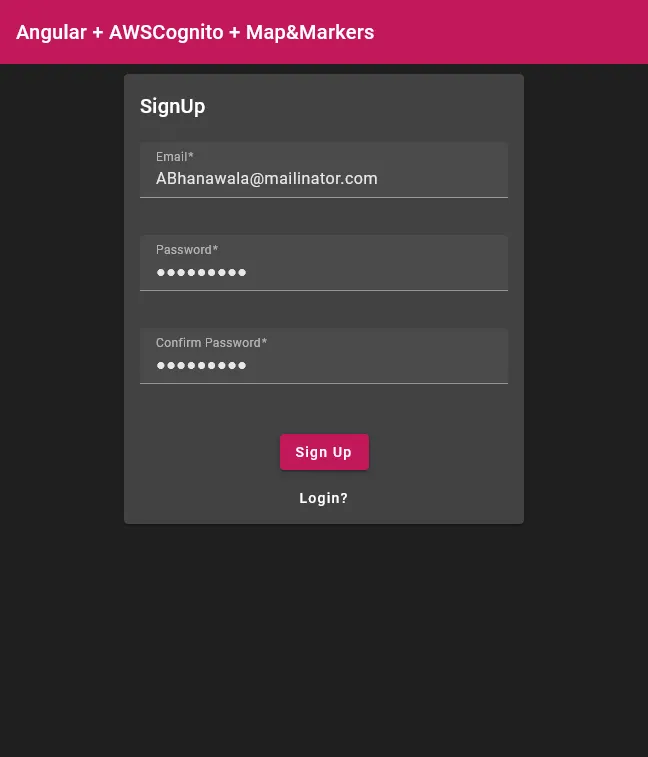
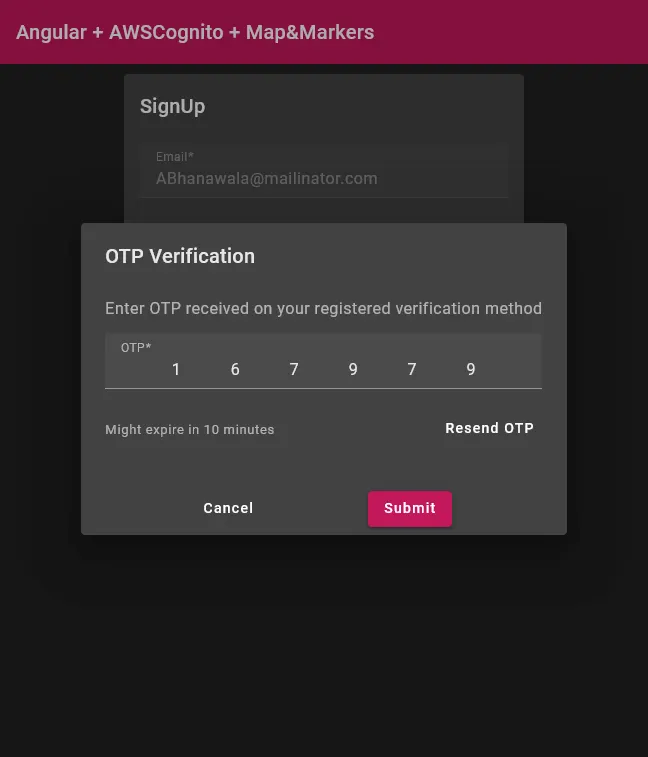
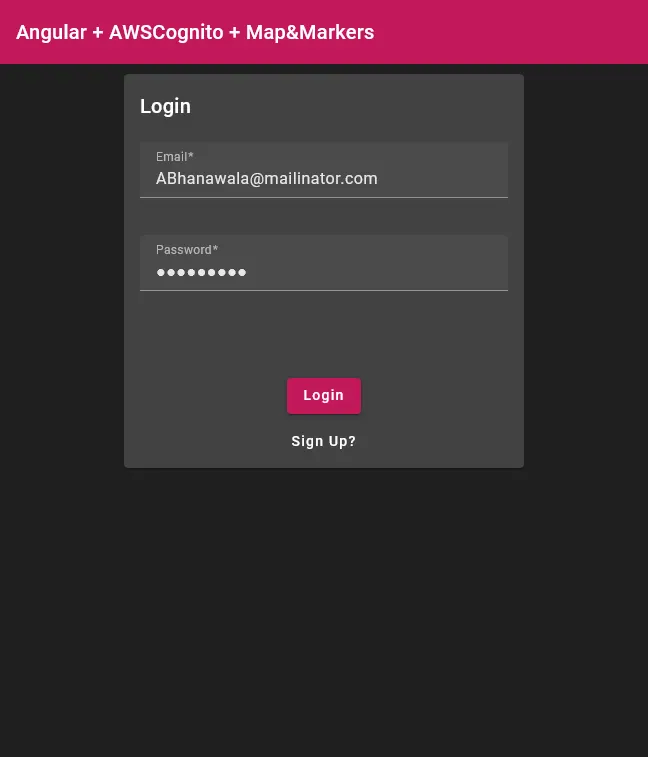
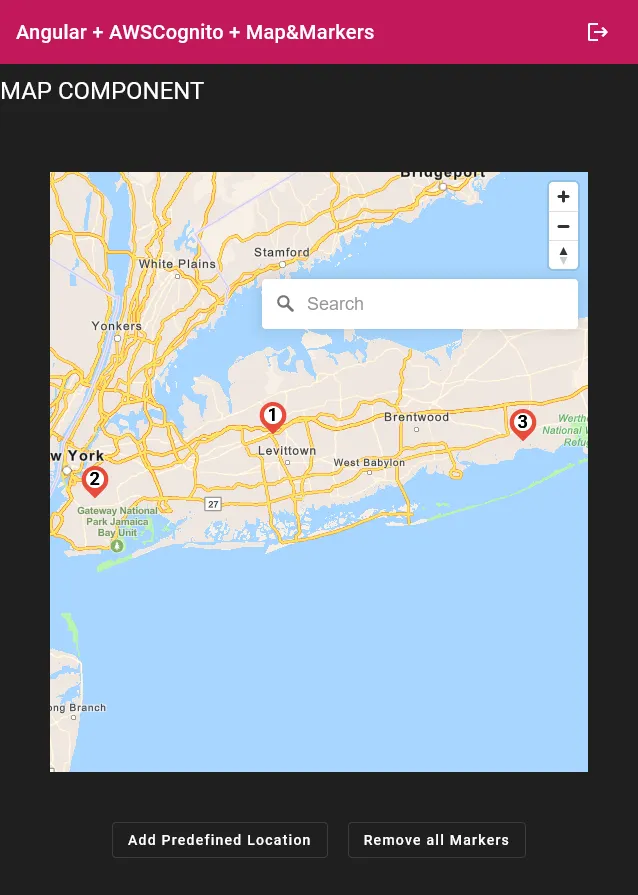
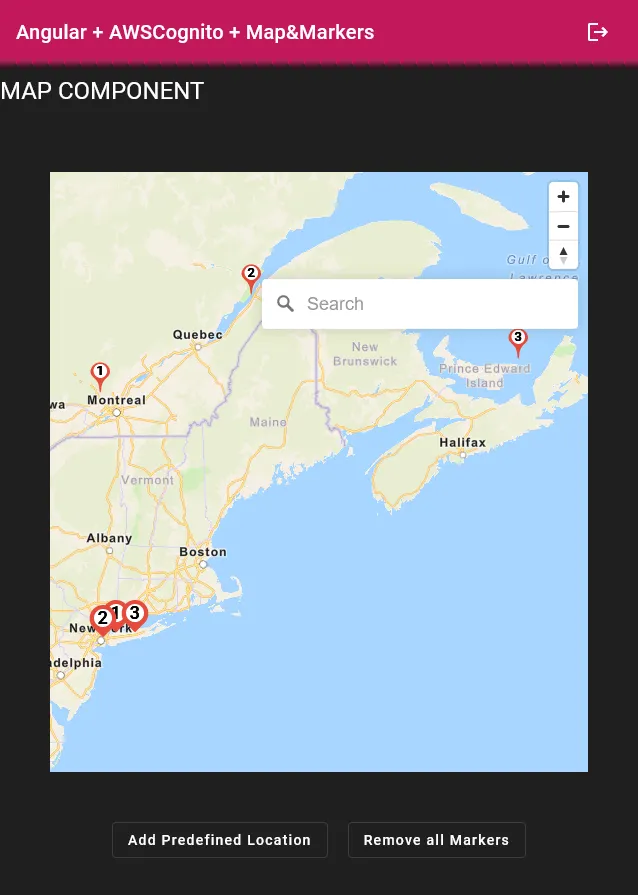
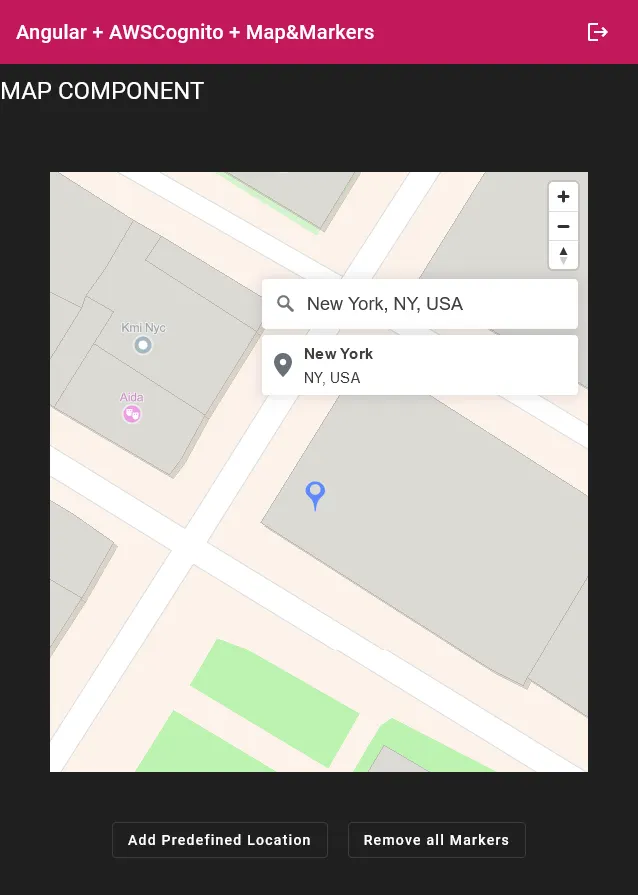
Conclusion
Overall, the application demonstrates the implementation of various Angular components, including a map component, login component, button component, OTP verification dialog, and message dialog, along with custom map markers. These components enable user authentication, facilitate interaction with maps, and display messages to the user.
As a whole, the application serves as a practical guide to:
- Implementing user sign-up and sign-in using AWS Cognito User Pool and Identity Pool
- Authenticating users and managing their sessions
- Getting started with AWS Location Service Maps and Place Index
- Exploring different ways to add markers on the map
- Adding and managing custom markers
Reference
If you’d like to jump into code now, this is the repository where you’ll find everything explained here:
https://github.com/AkshayBhanawala/Angular-AWS-Cognito-Location-Map-Markers